 RENDPROP
Short answer. A saved photo version is one edited output of a listing photo, stored beside the original with its own label, which you can choose to use in the gallery or the video, or leave unused. One photo can have several versions: a blue sky, a twilight, a staged one. The original is not a version; it is the thing every version came from.
A saved photo version is one edited output of a listing photo, stored beside the original with its own label, which you can choose for the gallery or the video or leave unused. One photo can have several versions, a blue sky, a twilight, a staged one, and each is a separate file with a separate disclosure. The original is not a version; it is the thing all the versions came from.
The idea is simple and the consequence is large: an edit is something you add, not something you do to the photo.
How a version is created
You pick a photo and ask for an edit, a preset like tidy the room or a custom instruction. The tool produces a new image, labels it by the kind of edit, and saves it as a version attached to that photo. The original file is not touched. If you ask for a second edit, you get a second version. If you run the same edit twice because the first attempt was poor, you get two versions and keep the better one.
Each version then has one job: to be selected or not. The version you select appears in the gallery and is available to the video. The ones you do not select stay on the shelf, with their labels, in case you change your mind.
When versions pay off
- Trying two ideas on the same frame: twilight against blue sky on the front exterior, then choosing one.
- Keeping a staged and an unstaged living room so the gallery can show both.
- Rebuilding a video later with the untouched exterior after the season changes.
- Answering a question about an edit, because the version and the original sit together with the label between them.
What a version is not
A version is not a copy of the listing, not a draft of the page and not a layer in an editor. It is not the photo history either; history is the whole trail, original included, and a version is a single entry in it.
The nearest confusable thing is an exported file. Once you export a version to your camera roll, rename it and send it somewhere, it stops being a version in any useful sense: no label, no link to the original, no way to tell it apart from a straight photo. Keep versions where they were made.
A kitchen with three versions
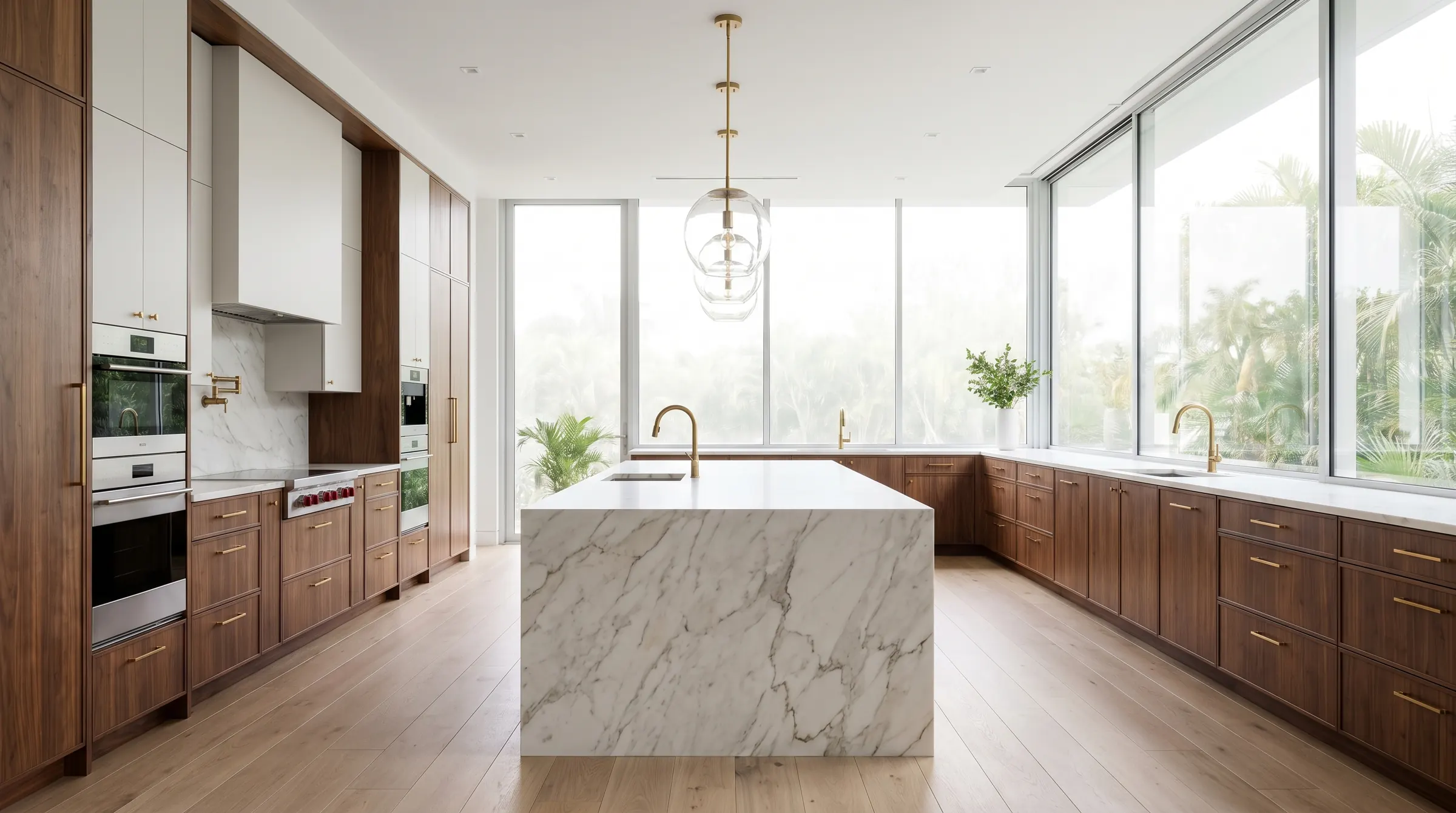
A photographer shoots a kitchen in an occupied 3-bed on a Monday. The counter has a kettle, a knife block and a stack of mail. She makes a tidy version that removes the mail and the kettle. The agent asks whether the room could read warmer, so she makes a second version from the original with a custom prompt that asks for the under-cabinet lights to be on. Then a third that combines both ideas.
Three versions, one original. The agent compares each against the original at full size. The combined version has moved a cabinet handle. She rejects it, picks the tidy-only version for the gallery and the video, and leaves the lit version unused but saved. If a buyer later asks whether the kitchen was edited, the answer is a label and an original, not a shrug.
How this works in Rendprop
Rendprop treats every AI edit as its own saved version with a disclosure attached. Staging is labelled Virtually staged; other edits carry an AI-alteration disclosure; the untouched original stays in photo history. Each version is compared with the original before you decide which saved versions go into the gallery and the video. AI can change or invent details, so compare edited photos against your originals before publishing. See the photo studio and how to review AI edits in Rendprop.
Where version handling goes wrong
Picking the wrong version by accident is the everyday mistake: the staged living room ends up in the MLS set when the unstaged one was meant to go. The second is selecting a version without comparing it, because the thumbnail looked fine. The third is running an edit on a version instead of the original, stacking alterations until the photo has drifted a long way from the room. Edit from the original, compare at full size, and select deliberately.
Next step: in your current listing, find one photo with more than one version and check which one is selected. If you cannot say why that one, choose again.